January 2025
Release 24.7
Gift Card Enhancements
Print Gift Card Balance
Stay is enhanced to allow users to print the previous balance of a gift card and the current balance after the gift card is issued or loaded in the Gift Card screen (Front Desk ➜ Gift Card).
Property Setting
-
The Show Gift Card Balance flag in the Options section of the Folio Template Setup screen (All Settings ➜ Templates ➜ Folio) must be enabled to display the current balance of a gift card when printing folios.
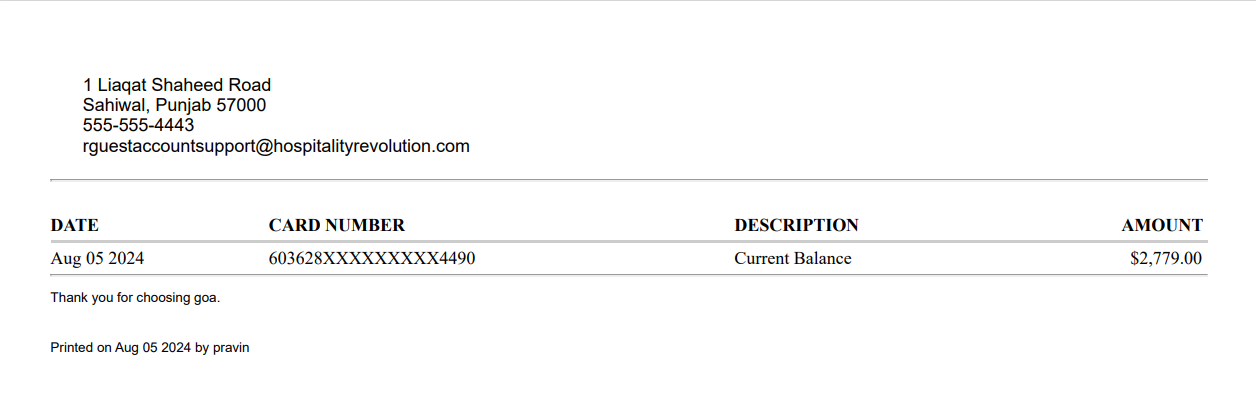
Print Current Balance of Gift Cards
Users can print the current balance of a gift card using the Print Balance option added to the Gift Card section of the Gift Card screen (Front Desk ➜ Gift Card). When clicked, a receipt is generated that displays the current balance of the gift card.
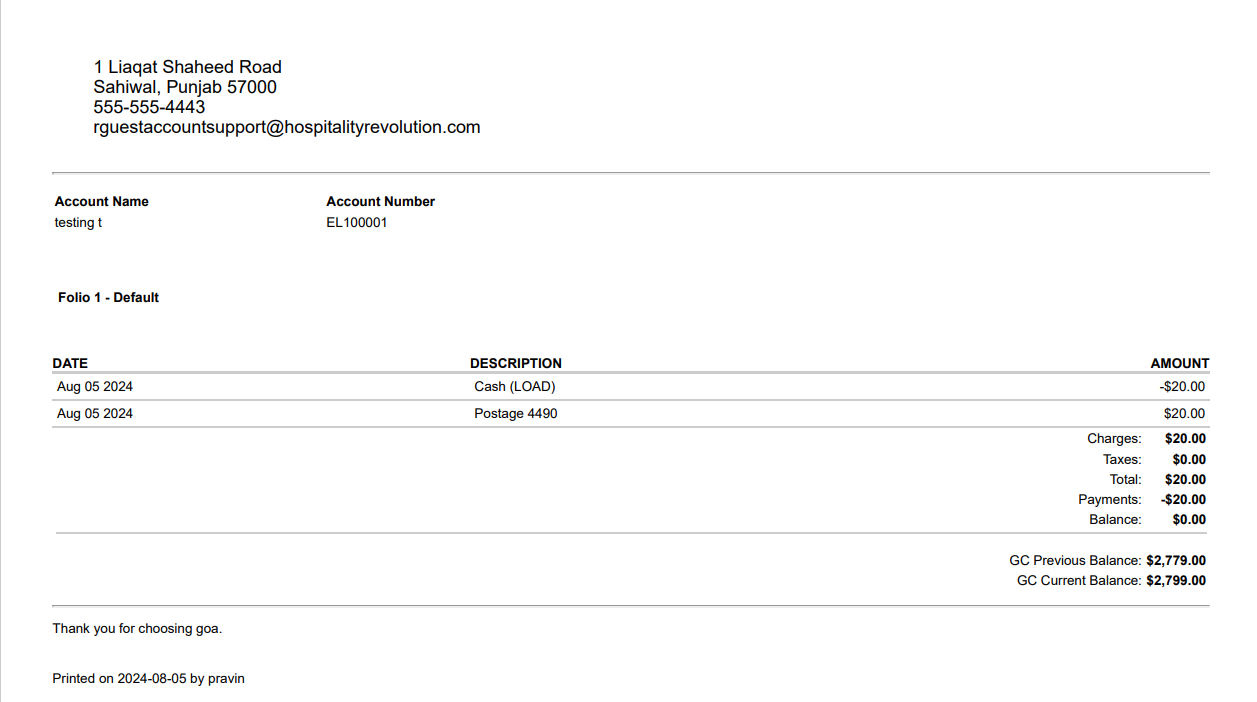
Print Previous and Current Balance of Gift Cards
Users can print the previous and current balance of a gift card using the Print Itemized Receipt option once the gift card is loaded or issued. When clicked, a receipt is generated that displays the previous and current balance of the gift card.
Display Gift Card Balance in Folios
Once users make a payment using a gift card in a reservation, group, or house account folio, the gift card balance after the transaction is completed is captured in the folio with the first 6 and last 4 digits of the gift card number.

The gift card balance is displayed next to the New Balance label in the record created for the transaction made using the gift card. When multiple gift cards are used, the balance of each gift card is captured and displayed for each transaction.
The balance is also displayed when the folio is printed.
Make Partial Payments Using Gift Cards
Stay allows users to make partial payments using gift cards in reservations, groups, house accounts, and when purchasing pantry items in the Pantry screen (Front Desk ➜ Pantry) and choose to display the current balance of the gift card after the payment is completed when printing the account folios.
Property Setting
-
The Allow Partial Payment checkbox in the Gift Card section of the Agilysys Pay Setup screen (All Settings ➜ Accounting ➜ Agilysys Pay Setup) must be selected to enable users to make partial payments using gift cards.
Full and Partial Payment for a Single Folio
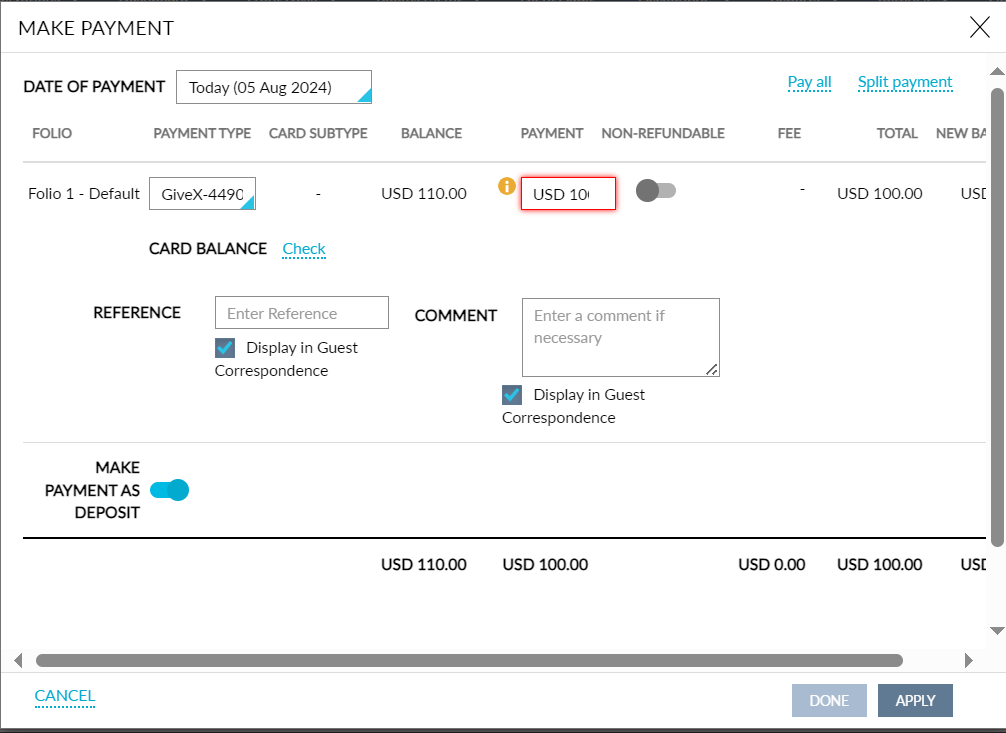
When users make a full payment for a single reservation, group, or house account folio using a gift card, a new label, Card Balance, is displayed in the Make Payment screen once the gift card is added. A hyperlink, Check, is displayed next to the label.
When users click the hyperlink, the current gift card balance and the new balance after deducting the amount are displayed.
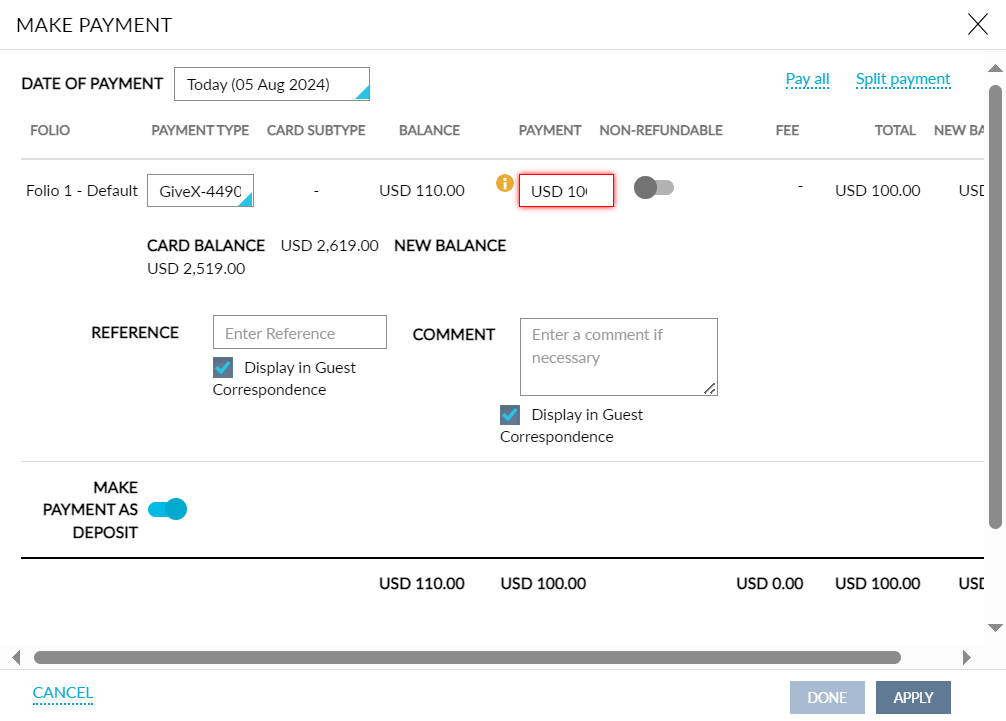
Users can complete the payment by clicking Apply.
When the Allow Partial Payment checkbox in the Gift Card section of the Agilysys Pay Setup screen is selected, users can make partial payments using a gift card when the payment amount is greater than the gift card balance.
When users try to make payments for an amount greater than the gift card balance, the amount available in the gift card is deducted and users are prompted to pay the balance amount using a different payment method. The following message is displayed as a banner in the Make Payment screen: Partial payment - $xxx.xx collected. Gift card balance limit has been reached. Please pay remaining balance using a different payment type.
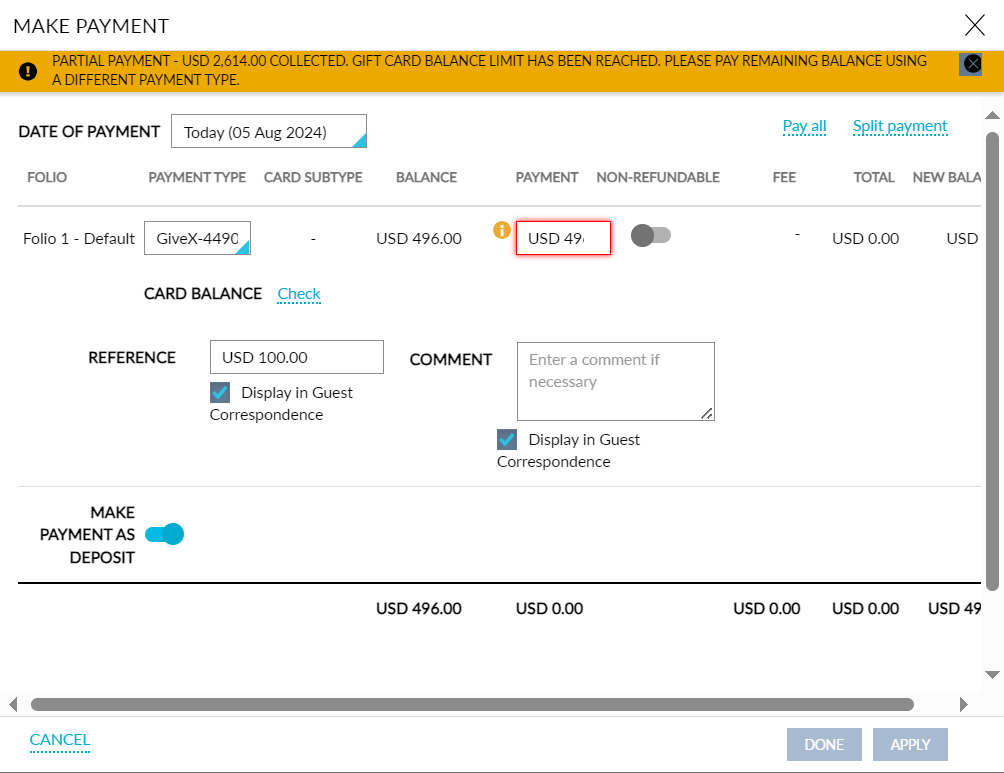
Users must select a different payment method to pay the remaining amount. When the Allow Partial Payment checkbox is not selected, partial payments cannot be made using a gift card.
When users try to make payments using a gift card with an insufficient balance, the payment will not be processed. The user is prompted to select a different payment method to complete the payment. The following message is displayed as a banner in the Make Payment screen: Gift card balance - $xx.xx insufficient balance, change the payment type to proceed.
Split Payments Using Gift Cards
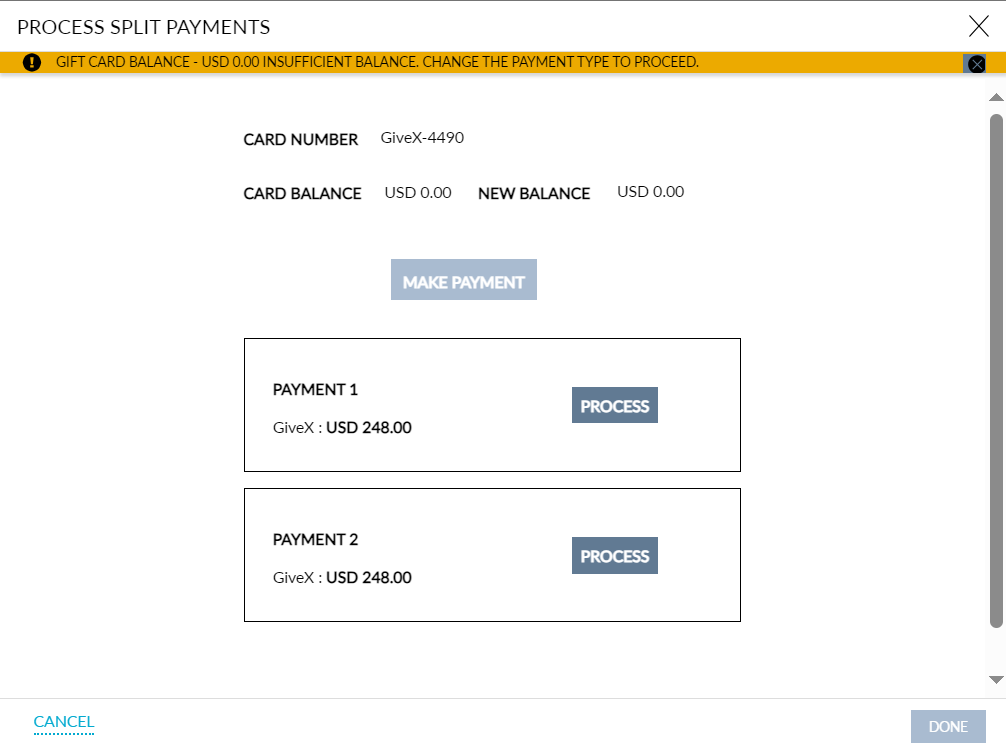
When users make split payments using a gift card, a new label, Card Balance, is displayed in the Process Split Payments screen once the gift card number is added. By default, the available balance of the gift card is displayed next to the New Balance label. When the gift card has an insufficient balance, the following message is displayed as a banner when users add the gift card: Gift card balance - $xx.xx insufficient balance, change the payment type to proceed.
Payments for Multiple Folios Using Gift Cards
When users make payments for multiple folios of a reservation, group, or house account using a gift card, the card balance and the new balance of the gift card is displayed by default once the card is added. In this case, the Check hyperlink will not be displayed.
Based on the balance available for the gift card, users can proceed with the payment or change the payment method. When users proceed with the payment using a gift card with insufficient funds, the following message is displayed as a banner: Gift card balance - $xx.xx insufficient balance, change the payment type to proceed.
Pay Cancellation Fee Using Gift Cards
When users cancel a reservation and pay the cancellation fee using a gift card, a new label, Card Balance, is displayed in the Cancel Reservation pop-up screen. Users can check the balance of the gift card using the Check hyperlink.
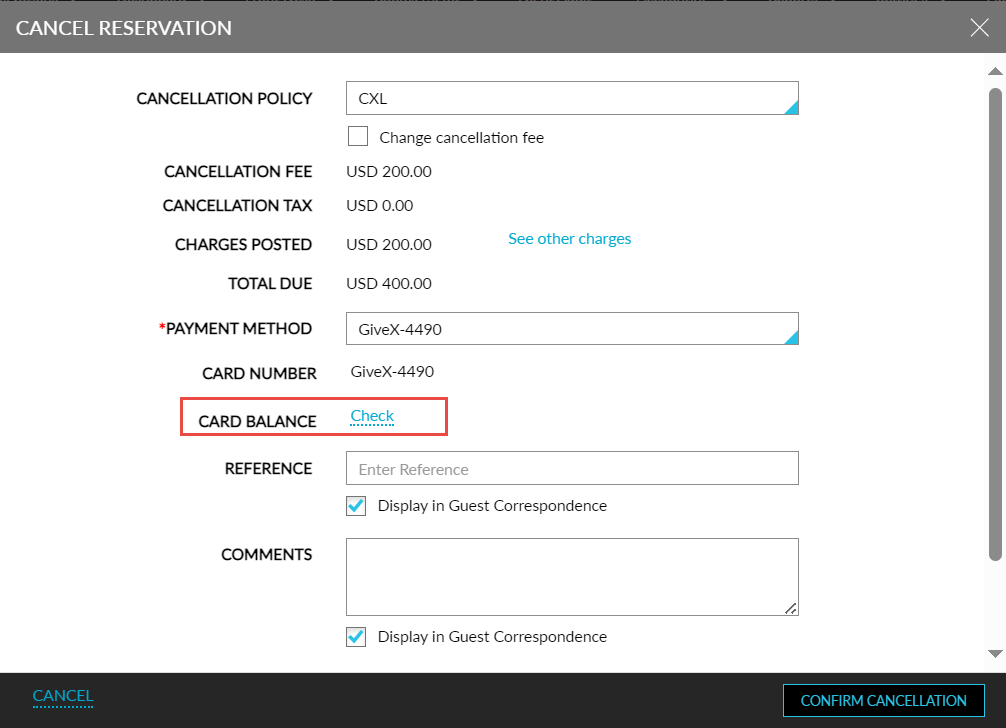
When the Allow Partial Payment checkbox is selected, users can make partial payments using the gift card. When a partial amount of the cancellation fee is paid using a gift card, the balance amount must be paid using a different payment method. The following message is displayed as a banner in the Cancel Reservation screen: Partial payment - $xxx.xx collected. Gift card balance limit has been reached. Please pay remaining balance using a different payment type.
When a user makes payment using a gift card with insufficient balance, the following message is displayed as a banner: Gift card balance - $xx.xx insufficient balance, change the payment type to proceed.
Payments for Pantry Items
When users purchase pantry items from the Pantry screen (Front Desk ➜ Pantry), a new label, Card Balance, is displayed once the gift card is added. Users can check the balance of the gift card using the Check hyperlink.
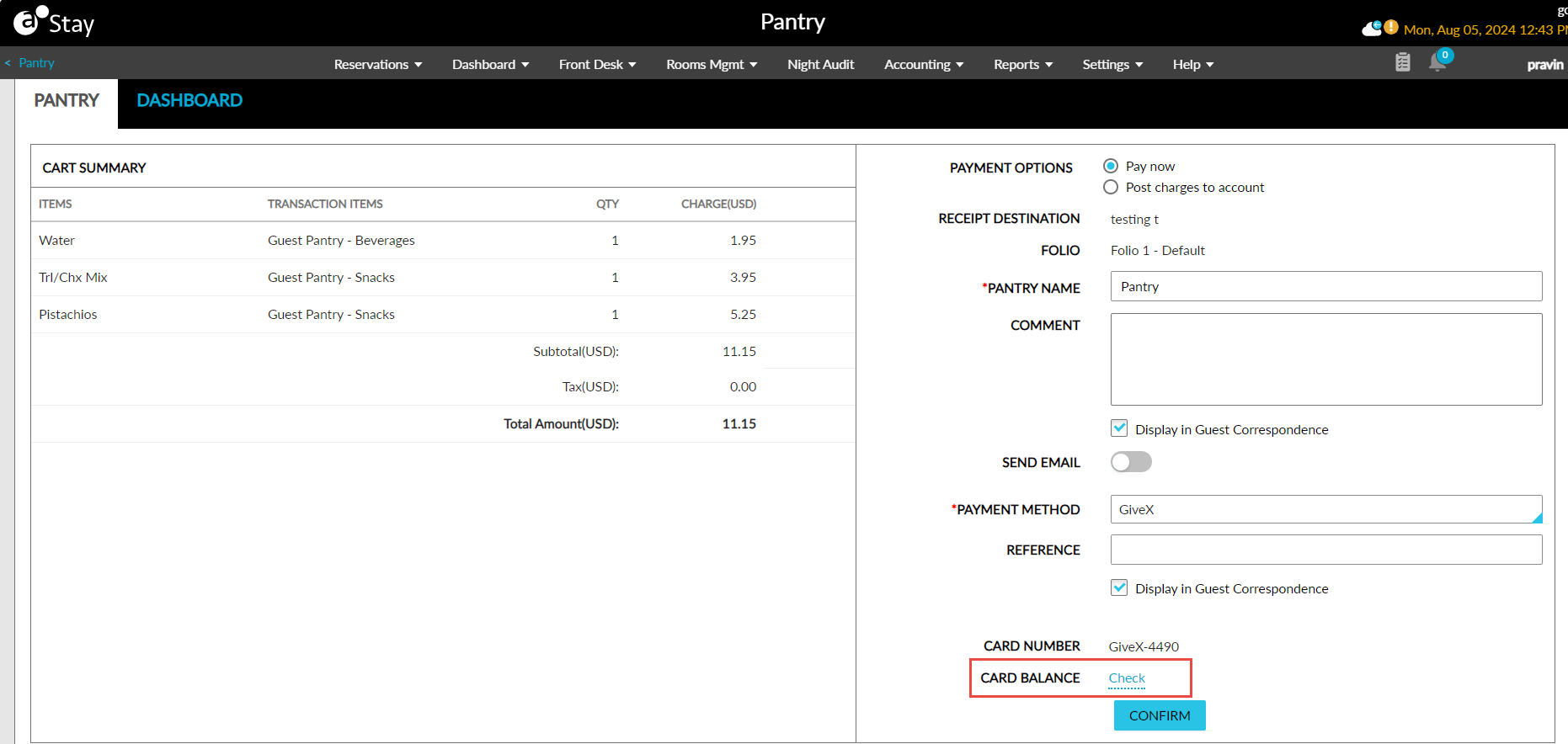
Users can proceed to make partial or full payment using the gift card.
System Changes
To support this enhancement, the following changes have been made:
-
A new checkbox, Allow Partial Payment, has been added to the Gift Card section of the Agilysys Pay Setup screen (All Settings ➜ Accounting ➜ Agilysys Pay Setup).
-
A new flag, Show Gift Card Balance, has been added to the Options section of the Folio Template Setup screen (All Settings ➜ Templates ➜ Folio).
-
Two new labels, Card Balance and New Balance, and a hyperlink, Check, have been added to the following screens:
-
Make Payment
-
Process Split Payments
-
Cancel Reservation
-
Pantry
-